How To Use An E-Signature for Medical Consent Forms
Using an electronic signature (E-Signature) is a quick, easy and secure way for primary contacts of long-term care residents to provide consents regarding their loved one living in Menno Home or Menno Hospital.
Who is this for?
This electronic signature system is being used with only the Primary Contact (Emergency Contact) of a resident living in Menno Home or Menno Hospital.
How to use the E-Sign System
To use this system follow the steps below. You’ll be able to respond to requests for consent through email and can easily print copies of any documents for your own records. Emails requesting consent will come from OneSpan signers@e-signlive.ca .
If you are expecting a document and do not get an email please check your junk folder.
- Consider adding signers@e-signlive.ca to your safe list so your email provider knows that they are not junk in the future.
- You can also create this email address as a contact so your email provider knows that is it wanted mail. [Instructions for Outlook and Gmail are here.]
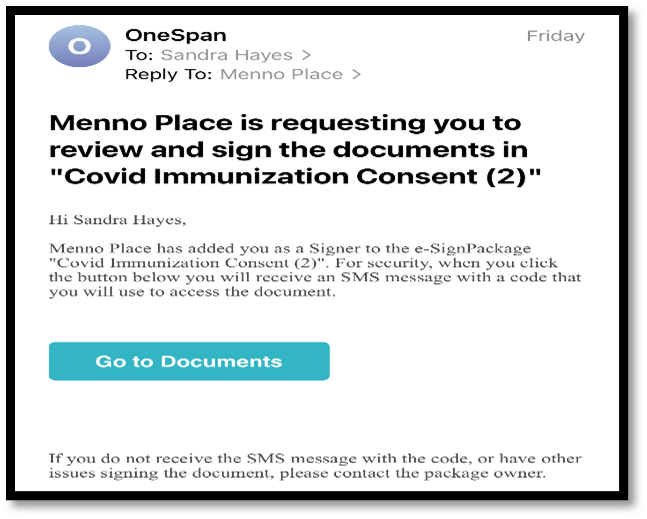
Note: The OneSpan system refers to documents as “packages” so you will see language like “Menno Place has added you as a Signer to the e-Sign Package “Covid Immunization Consent” for example.
Using OneSpan for E-Signatures
- Primary contacts will receive an email from OneSpan signers@e-signlive.ca . Email will read “Menno Place is requesting you to review and sign the documents in [Name of Documents].
- Click on Go to Documents
- A web browser will open with the message: “Hello Mr. Smith. For security purposes, you must authenticate yourself before you can access the documents.”
- Click Authenticate.
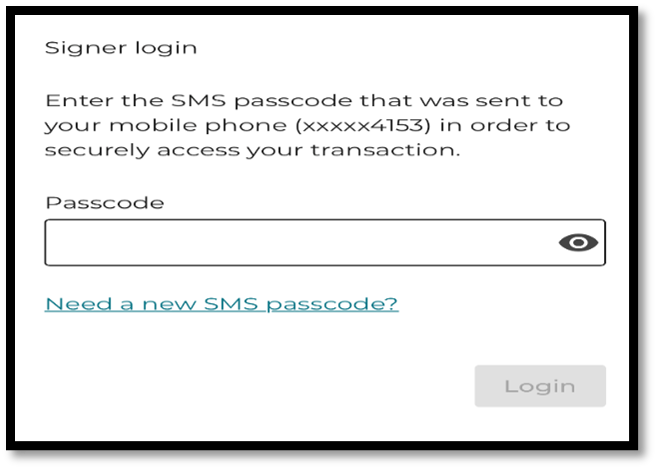
- A Verification code is sent as a text message to your mobile phone.
- Enter Passcode and click Login
- A new window generates a message: “Mr. Smith: Actions Required – Review and Sign” Click Start
- Read and agree to Terms of the eSign Disclosure Document. Check box and Click Accept
- Read the document then fill out all applicable/required fields. Note there are text box fields, check boxes, date fields and signature lines
- Once completed and signed, click Confirm
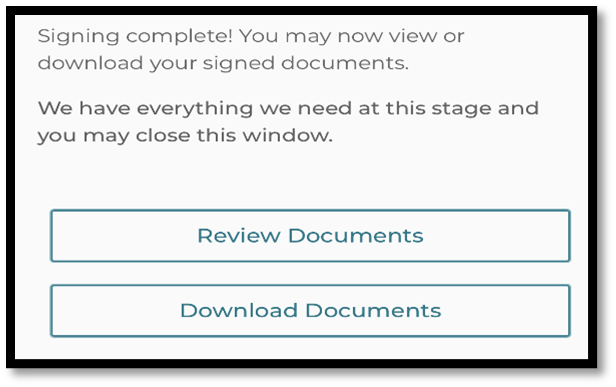
- The signing is now complete. Review and/or Download the Document if required.
If you have any questions about using this system please contact Garry Janzen, LEC or call the nurse on your loved one’s unit.